
The Inbox Habit Most Gmail Users Never Learn
Aug 12, 2026
first-story
Seeking
Visibility


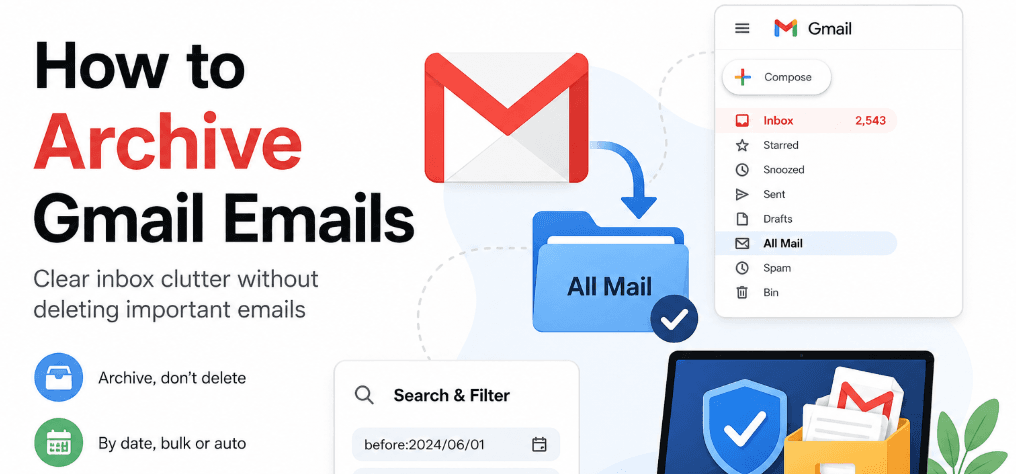
Photo Credit: Image is generated with the help of automation tool
Archive Gmail emails without deleting important messages. Learn how to clean your inbox by date, in bulk, automatically, and keep critical emails safely backed up.
There's a specific kind of dread that comes from opening Gmail and seeing a number in the thousands next to "Inbox." Most people respond to it one of two ways — they ignore it completely, or they go on a deleting spree and immediately regret it when a receipt or an old work thread turns out to matter after all. There's a third option most people never actually learn to use properly, and it solves both problems at once.
The Feature Everyone Has, Almost Nobody Uses Well
Gmail has had this option sitting in plain sight for years. It doesn't get much attention because it doesn't sound exciting, it just quietly moves a message out of your inbox and into a holding area called "All Mail," where it's still fully searchable but no longer cluttering your view.
Here's the part that trips people up: this doesn't shrink your storage usage. The email hasn't gone anywhere — it's just been filed away instead of deleted. If your goal is genuinely to free up space in your account, this isn't the tool for that. If your goal is a calmer, more usable inbox without the anxiety of permanently losing something, this is exactly the tool for that.
Clearing Messages by Hand
For everyday cleanup, this takes almost no thought:
- Log into Gmail.
- Tick the box next to the message (or messages) you're done looking at.
- Click the archive icon in the toolbar above your inbox.
- Find it later under "All Mail" whenever you need it again.
Small, frequent cleanups like this are usually enough to keep an inbox from spiraling in the first place.
Wiping the Slate Clean in One Go
If your inbox has been neglected for a while, doing this one email at a time isn't realistic. Gmail's select-all option exists for exactly this situation:
- Open Gmail on desktop.
- Click the checkbox at the top-left of your message list.
- If you have more messages than fit on one page, click the prompt to select every conversation across your account.
- Archive the entire batch in one click.
This is the move for anyone starting fresh, a full reset in under a minute.
Cleaning Out a Specific Time Range
Total resets aren't always the goal. Sometimes it's just "get rid of everything from before last year" and Gmail's search bar handles that with a few typed commands:
- Type before:2024/06/01 to surface everything sent before that date.
- Type after:2024/06/01 for the opposite direction.
- Use both together to isolate a window between two dates.
There's also a shortcut for people who don't want to think in exact dates: older_than:1y, older_than:6m, or older_than:30d all work as relative filters, calculating the date range automatically.
Stacking a date filter with something more specific — a sender's address, a subject keyword, a label, narrows the results down precisely. A search like from:updates@service.com older_than:1y clears out a year of one particular sender without disturbing anything else.
Letting Gmail Handle It Automatically
Doing this manually every month works, but it's not the only option. A filter can take over the job entirely:
- Click into the search bar's advanced search options.
- Enter the criteria you want Gmail to watch for.
- Choose "Create filter," then check "Skip the Inbox."
- Save it, and every future match follows that rule automatically.
Worth knowing before setting this up: it only applies going forward. Existing inbox clutter needs to be cleared manually first — the filter won't reach backward and touch anything already there.
Why "Somewhere Safe Inside Gmail" Isn't the Same as "Backed Up"
Here's the distinction most people miss entirely: keeping something inside your Gmail account, no matter how well organized, still means it's one lost password or one flagged account away from disappearing entirely. For messages that genuinely matter — contracts, tax records, years of client correspondence that risk is worth eliminating completely.
That's the actual job of a Gmail Email Backup Tool: it pulls a real, standalone copy of your mailbox out of Gmail and onto your own hard drive, where it no longer depends on your Google account staying intact. It's the difference between filing something in a drawer inside a building that could burn down, and keeping a copy somewhere else entirely.
What About Google's Own Export Tool?
Google Takeout is the built-in alternative, and it's worth knowing its limits before relying on it. It can only export by label, not by a specific date range — so there's no way to say "just give me last year's emails." You either request everything or nothing.
It also needs a stable connection throughout, since an interrupted export has to start over rather than resume. For a one-time full backup of an entire account, it's serviceable. For anything more targeted or time-sensitive, it tends to be more hassle than it's worth.
The Questions People Usually Ask Next
Does doing this free up my storage limit? No. The message is still inside your account, just relocated. Deleting, not reorganizing, is the only way to reclaim space.
Can I get a message back if I need it? Always. Replying to it brings it straight back to your inbox, or you can move it back manually with one click.
Is there a limit to how many emails I can process this way? No practical limit — the same steps work whether you're clearing ten messages or ten thousand.
The Bottom Line
A cluttered inbox doesn't have to end in either total neglect or a delete-everything panic. Gmail's built-in tools used individually, in bulk, by date, or on autopilot — cover nearly every version of this problem. A full breakdown of every method, explained step by step, is covered in this guide on how to archive Gmail emails. And for the messages you genuinely can't afford to lose, pairing that habit with a proper local backup means your inbox stays both clean and truly protected not just tidier-looking.
- Technology
- First Story
- South and Central Asia