
How to Fix “Acrobat could not perform text recognition on this page because” Error
May 12, 2026
story
Seeking
Action


Photo Credit: BitRecover
How to Fix “Acrobat could not perform text recognition on this page because” Error
If you are seeing the Acrobat could not perform text recognition on this page because error in Adobe Acrobat, you are likely dealing with a PDF that Acrobat cannot process properly during OCR.
This issue often appears when working with scanned files, secured PDFs, damaged documents, or low-quality images. In some cases, Acrobat expands the message into " Acrobat could not perform text recognition on this page because unknown error, which makes troubleshooting even more confusing.
Here’s the thing. OCR errors are usually tied to the PDF itself rather than Acrobat alone. The good news is that most of these problems can be fixed with a few practical steps.
Why Does This OCR Error Happen?
Adobe Acrobat OCR relies on clean page structure, readable scans, and proper document permissions. If any of these elements fail, Acrobat may stop processing the file.
Below are the most common reasons behind the error.
1. PDF Restrictions or Permissions: Many PDFs contain owner-level restrictions that block editing, copying, or text extraction. Even if the file opens normally, hidden permissions can interfere with OCR. This is especially common with:
- Legal documents
- Bank statements
- Protected reports
- Enterprise-generated PDFs
In these cases, removing restrictions before OCR usually solves the issue.
2. Poor Scan Quality: OCR accuracy depends heavily on image clarity. If the PDF contains blurry pages, dark shadows, low contrast, or tilted scans, Acrobat may fail to recognize text correctly. Adobe recommends scanning documents at 300 DPI for reliable OCR performance.
3. Corrupted PDF Files: Damaged PDFs can interrupt Acrobat’s text recognition engine. Signs of corruption include:
- Blank pages
- Acrobat freezing
- Missing images
- Slow loading
If the file was downloaded from email or cloud storage, try downloading it again before running OCR.
4. Outdated Adobe Acrobat Version: Older Acrobat versions may contain OCR bugs or compatibility issues. Updating Acrobat can often fix recognition failures instantly.
Quick Ways to Fix the Error
Let’s break down the most effective solutions.
Update Adobe Acrobat
Start with the basics.
- Open Acrobat
- Click Help
- Select Check for Updates
- Install available updates
- Restart Acrobat
OCR modules improve regularly, so keeping Acrobat updated matters more than most users realize.
Improve Scan Quality
If your PDF is scanned poorly, OCR may never work correctly.
Try these improvements:
- Scan at 300 DPI or higher
- Use grayscale mode
- Keep pages straight
- Remove shadows and marks
- Avoid heavy compression
Even a cleaner rescan can dramatically improve OCR results.
Save as Optimized PDF
Sometimes the PDF structure itself causes the problem.
To optimize the file:
- Open the PDF
- Go to File > Save as Other
- Choose Optimized PDF
- Save the file
- Retry OCR
This rebuilds internal PDF objects and removes problematic elements.
Best Fix: Remove PDF Restrictions Before OCR
One of the most effective ways to solve the acrobat could not perform text recognition on this page because unknown error issue is to remove restrictions from PDF first.
That’s where BitRecover PDF Unlocker Tool works as a strong solution.
The tool functions as a professional PDF Restrictions Remover that removes owner-level restrictions ethically from PDF files. Once restrictions are removed, Acrobat can process OCR much more smoothly.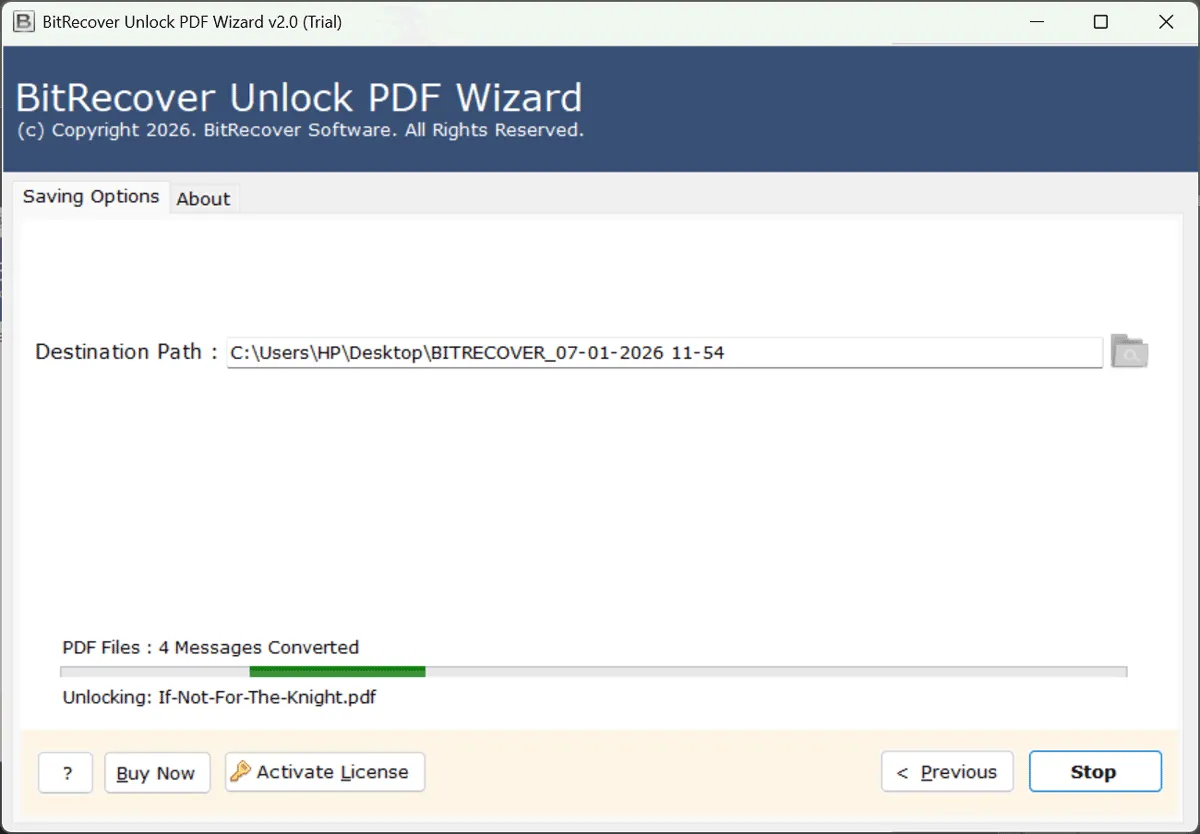
Why Use BitRecover PDF Password Remover?
- Removes PDF editing restrictions automatically
- Unlocks copying, printing, and extraction permissions
- Supports batch processing
- Maintains original formatting
- Simple interface for beginners and professionals
Instead of trying multiple manual workarounds, you can prepare the PDF correctly before running OCR.
Steps to Use the Tool
- Install BitRecover PDF Password Remover
- Add restricted PDF files
- Select a save location
- Click Start.
- Open the unlocked PDF in Acrobat
- Run OCR again
For users handling secured business documents regularly, this approach saves a huge amount of time.
Additional Fixes You Can Try
If the issue continues, these methods also help.
Print the PDF Again
Printing the file to a new PDF recreates the document structure.
- Open the PDF
- Press Ctrl + P
- Choose Microsoft Print to PDF
- Save the new file
- Retry OCR
- Convert the PDF to Another Format
Converting the PDF to Word or image format and then recreating the PDF can remove damaged metadata that blocks OCR.
Tips to Prevent OCR Errors in the Future
To avoid repeated OCR failures:
- Always scan documents at 300 DPI
- Avoid over-compressing PDFs
- Keep Acrobat updated
- Remove restrictions before archiving PDFs
- Store clean backup copies of important documents
A properly prepared PDF makes OCR faster and far more accurate.
Final Thoughts
The acrobat could not perform text recognition on this page because errors are usually linked to restrictions, poor scan quality, corrupted PDFs, or outdated Acrobat software. While manual fixes can help, restricted PDFs often create the biggest problems during OCR.
Using a dedicated PDF Restrictions Remover like BitRecover PDF Password Remover gives Acrobat a cleaner file to process, which improves OCR success rates significantly. Once permissions are removed and the PDF structure is stable, text recognition becomes much smoother and more reliable.
- Technology
- Digital Skills
- Internet Access
- Global