
Convert Text to Excel File Easily: A Practical Guide That Actually Works
May 4, 2026
first-story
Seeking
Action


Photo Credit: BitRecover
Convert Text to Excel Using BitRecover TXT Converter
If you need to convert text to Excel file, you’re probably dealing with messy data that’s hard to read or analyze. Plain text files are simple, but they’re not built for sorting, filtering, or reporting. That’s where Excel steps in and makes everything easier to manage.
Here’s the thing: The process to convert text to Excel isn’t just about changing file formats. It’s about turning unstructured data into something useful. Whether you’re working with logs, exported data, or reports, getting that data into Excel format can save hours of manual work. Let’s break it down step by step so you can choose the best approach.

Understanding TXT Files vs Excel Files
A TXT file is as basic as it gets. It stores plain text without formatting. No tables, no columns unless you manually structure them using delimiters like commas or tabs.
Excel files, on the other hand, are built for structure:
- Organized rows and columns.
- Built-in formulas.
- Sorting and filtering.
- Data visualization.
What this really means is that while TXT files are great for storing raw data, Excel is better for working with that data.
Common Use Cases for Text to Excel Table Converter
People don’t just convert files for fun. There’s usually a real need behind it.
Here are a few common scenarios:
- Converting server logs into readable reports
- Managing exported data from applications
- Preparing datasets for analysis
- Organizing large lists into structured tables
For example, a marketing analyst might export campaign data in TXT format and then use a text to Excel table converter to clean and analyze performance metrics. And this is where efficiency matters, especially when dealing with multiple files.
Manual Methods to Convert Text to Excel File
Let’s start with the basics. Yes, you can do this manually. But it’s not always the smartest move.
Method 1: Using Excel Import Wizard
Excel has a built-in import feature:
- Open Excel
- Go to Data → From Text/CSV
- Select your TXT file
- Choose a delimiter (comma, tab, etc.)
- Load into Excel
This works well if your data is clean and properly separated.
Method 2: Copy-Paste Approach
This is as simple as it sounds:
- Open TXT file
- Copy content
- Paste into Excel
- Use “Text to Columns” feature
Quick, but messy if the data isn’t structured properly.
Limitations of Manual Methods
Here’s where things get frustrating.
Manual methods struggle when:
- You have multiple files
- Data is inconsistent
- Formatting breaks during import
- You need automation
According to a report by McKinsey, employees spend nearly 20% of their workweek handling data manually. That’s a lot of wasted time for something that can be automated.
So if you’re dealing with more than a few files, it’s time to think smarter.
How to Batch Convert TXT to XLSX Efficiently?
If your goal is to batch convert txt to xlsx, manual methods simply won’t cut it.
You need:
- Bulk processing
- Consistent formatting
- Speed and accuracy
- Batch conversion ensures:
- No repetitive tasks
- Reduced human error
- Faster turnaround
This is especially useful for IT teams, analysts, and businesses handling large datasets daily.
Professional Solution: BitRecover TXT Converter
Now let’s talk about a solution that actually makes sense.
The BitRecover TXT Converter isn’t just another tool. It’s designed for people who want results without wasting time.
From the screenshot you shared, you can see it supports multiple saving formats, including:
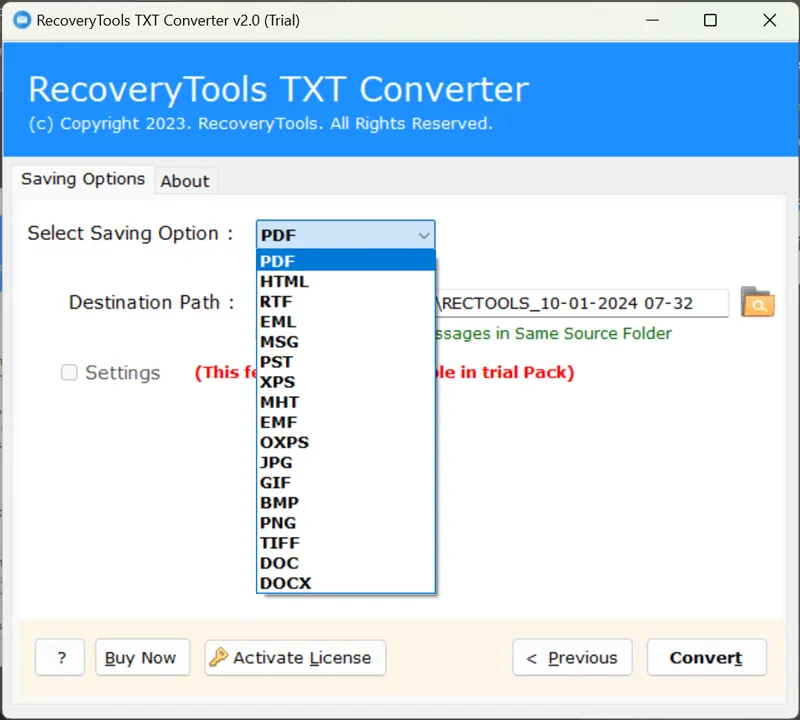
- HTML
- RTF
- EML
- MSG
- PST
- XPS
- MHT
- EMF
- OXPS
- JPG, GIF, BMP, PNG, TIFF
- DOC, DOCX
Here’s what makes it stand out.
Key Features
- Bulk file conversion support
- Maintains data integrity
- Simple interface
- Multiple output formats
- Supports structured export
And here’s something important: even if Excel format isn’t listed directly in your version, the tool offers feature add-ons. You can connect with the support team and request an update tailored to your needs.
That flexibility matters.
Why It Outperforms Manual Methods?
Let’s be honest. Manual conversion is fine for small tasks. But when scale comes in, it falls apart.
BitRecover solves that by:
- Automating the process
- Handling large volumes
- Preserving formatting
- Reducing effort
Think of it as moving from a bicycle to a car. Both get you there, but one is clearly more efficient.
Step-by-Step Guide to Convert Text to Excel File Using BitRecover
Here’s how you can actually use it.
- Install and open BitRecover TXT Converter
- Add your TXT files or folders
- Select saving option (choose a compatible format or request Excel add-on)
- Set destination path
- Click Convert
That’s it.
No complicated setup. No guesswork.
Advanced Tips for Better Data Formatting in Excel
- Even after conversion, a few tweaks can make your data cleaner.
- Use “Text to Columns” for better separation
- Apply filters to organize data
- Use formulas like SUM or VLOOKUP
- Format cells for consistency
- Small adjustments can turn raw data into actionable insights.
Real-World Example and Statistics
Let’s say you’re managing customer data exported from a CRM in TXT format.
Without conversion:
- Data is hard to read
- No sorting or filtering
- Manual effort required
- After conversion:
- Organized tables
- Quick analysis
- Better decision-making
According to Statista, over 1.5 billion people use Excel worldwide. That alone shows how critical structured data is in everyday workflows.
Conclusion
To convert text to Excel file efficiently, you need more than just basic methods. Manual approaches work for small tasks, but they quickly become a burden when dealing with larger datasets. Tools like BitRecover TXT Converter simplify the entire process, save time, and reduce errors, making them a practical choice for anyone handling data regularly.
- Technology
- First Story
- Digital Skills
- Global