
Best Ways to Preserve OneNote Notes When Changing Computers
Aug 10, 2026
initiative
Seeking
Action


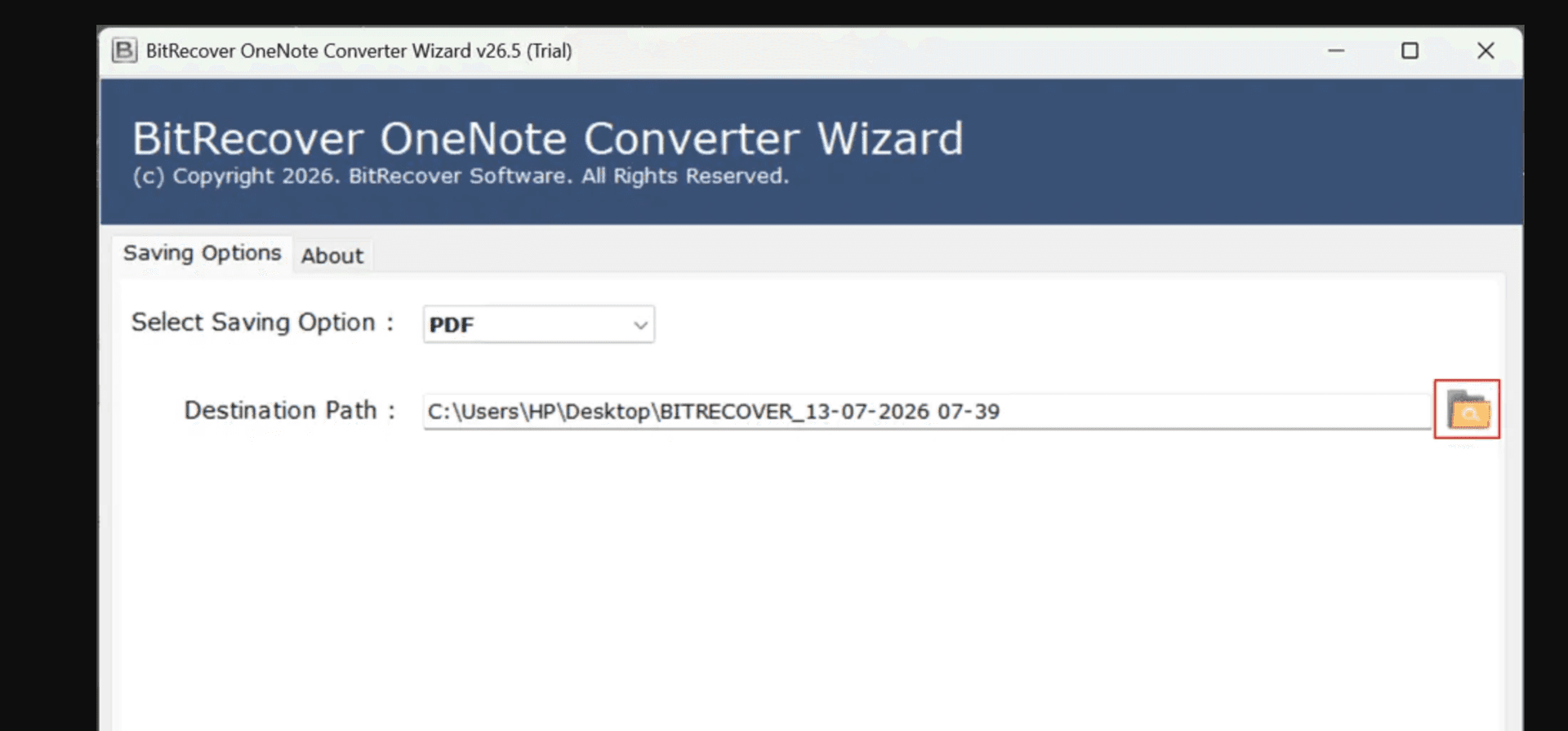
Photo Credit: RecoveryTools OneNote Migration Tool
RecoveryTools OneNote Migration Tool
Changing computers is usually a straightforward process until you realize how much important information is stored on the old device. OneNote notebooks can contain years of meeting notes, research, study material, project information, personal records, images, attachments, and other valuable content. When moving to a new computer, simply copying a few folders may not always be enough to ensure everything remains accessible.
Fortunately, there are several ways to preserve OneNote notes when changing computers. The best approach depends on where your notebooks are stored, how many files you have, and whether you plan to continue using Microsoft OneNote.
Understand Where Your OneNote Files Are Stored
Before moving anything, first determine where your OneNote notebooks currently reside. Depending on how they were created and saved, you may have locally stored `.ONE`, `.ONEX`, or `.ONEPKG` files, or notebooks synchronized through a Microsoft account.
This distinction matters because cloud-synchronized notebooks and locally stored files require different approaches. Take some time to identify important notebooks and check their locations before starting the migration.
If you have a large collection of locally stored OneNote files, **RecoveryTools OneNote Migration Tool** can be useful for preserving and converting them. The desktop application supports `.ONE`, `.ONEX`, and `.ONEPKG` files and provides multiple output formats, including PDF, DOCX, HTML, JPG, and PNG. Because processing takes place locally, users can work with their notebooks without uploading them to an online conversion service.
1. Create a Complete Backup Before Moving Anything
The first and most important step is creating a backup of your existing OneNote data.
Copy your important notebooks to an external hard drive, SSD, USB drive, or another secure storage location. If you have many notebooks, organize them into clearly named folders based on projects, subjects, years, or other categories.
Keep the original files untouched until you have confirmed that the copies are complete and accessible. Having an original backup gives you something to fall back on if a file becomes damaged or something goes wrong during the transfer.
2. Check Your Microsoft Account and Synchronization
If you regularly use OneNote with a Microsoft account, check whether your notebooks have been synchronized before switching computers.
On the new computer, sign in with the same account and verify that your expected notebooks are available. Open different pages and sections rather than checking only the notebook names. This helps confirm that the information has actually synchronized.
Pay particular attention to images, attachments, handwritten notes, tables, links, and other content that may be important to you.
Even when synchronization is enabled, maintaining a separate backup of critical information is a sensible precaution.
3. Transfer Locally Stored OneNote Files
Some users have OneNote files saved directly on their computer rather than in a synchronized location. These files need to be transferred separately.
Search your old computer for OneNote-related files and identify important `.ONE`, `.ONEX`, or `.ONEPKG` files. Copy them to your new computer while maintaining their existing folder organization.
Avoid moving or deleting the original files until you have checked the transferred copies. If your notebooks are spread across several folders or drives, make a checklist so that you do not accidentally overlook an important collection.
4. Convert Important Notes Into Common Formats
If you are moving to a computer where Microsoft OneNote will not be installed, converting important notes into commonly supported formats can make them easier to access.
PDF is a practical choice for archiving, printing, and sharing because it is supported across many devices and operating systems. DOCX can be useful when you need to edit or reuse text. HTML provides another convenient option for browser-based viewing, while JPG and PNG can be suitable for preserving pages as images.
Keeping converted copies alongside your original OneNote files provides an additional way to access important information in the future.
5. Preserve the Original Content and Structure
OneNote notebooks can contain considerably more than simple text. A single notebook may include multiple sections and pages along with images, tables, hyperlinks, attachments, drawings, and formatting.
For this reason, preserving the content means more than simply making the text available. After transferring or converting your files, check whether the important elements still appear correctly.
Open several pages from different notebooks and compare them with the originals. This is particularly important when the notes contain business information, academic research, project documentation, or other material that would be difficult to recreate.
6. Use Batch Processing for Large Collections
Moving a few OneNote notebooks manually may not be difficult. However, the process becomes much more complicated when you have dozens or hundreds of files.
Large collections can contain files distributed across multiple folders, making individual processing slow and inconvenient. A batch conversion approach can help reduce repetitive work by allowing multiple files or folders to be processed together.
This can also make the migration more consistent because the same output settings can be applied to an entire collection instead of repeating the process for every individual file.
7. Keep an Offline Archive
Even after successfully transferring your notes to the new computer, consider maintaining an offline archive.
An external hard drive or SSD can provide an additional copy of your important notebooks. If the information is particularly valuable, maintaining multiple backups in separate locations can provide additional protection against hardware failure or accidental deletion.
An offline archive is also useful when you need to access older information years later, especially if the software or account originally used to create the notes is no longer available.
8. Organize Your Notes During the Migration
Changing computers is also a good opportunity to clean up your OneNote collection.
Remove unnecessary duplicates, group related notebooks together, and use meaningful folder names. You can also separate frequently accessed notebooks from long-term archives.
If you are converting files into another format, use a consistent naming convention. For example, folders can be organized by year, project, department, or subject. Good organization makes it much easier to locate individual notes later.
- Education
- Technology
- Peace & Security
- Internet Access
- Youth
- Northern America